Remotely Fixing 100K+ Tablets from My Bedroom for €3
October 13, 2026 at 11:20 PM • 16 minute read
Introduction
I like going to flea markets to buy stuff to mess with. At my local one, there’s a sweet lady who always has good stuff for cheap. Last time I went, I picked up three things, and this post is about one of them.
The TrekStor SurfTab breeze 10.1 quad.
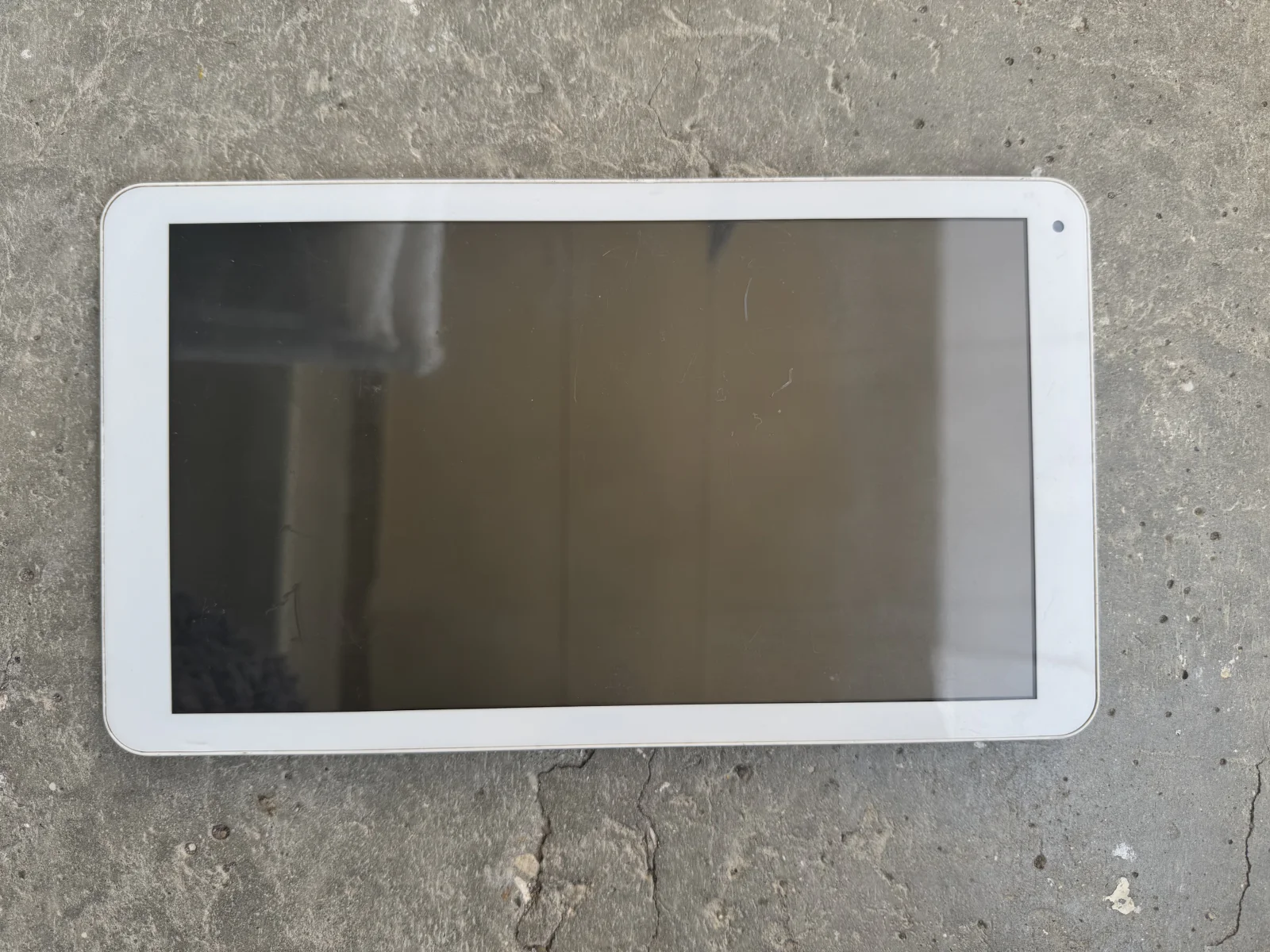
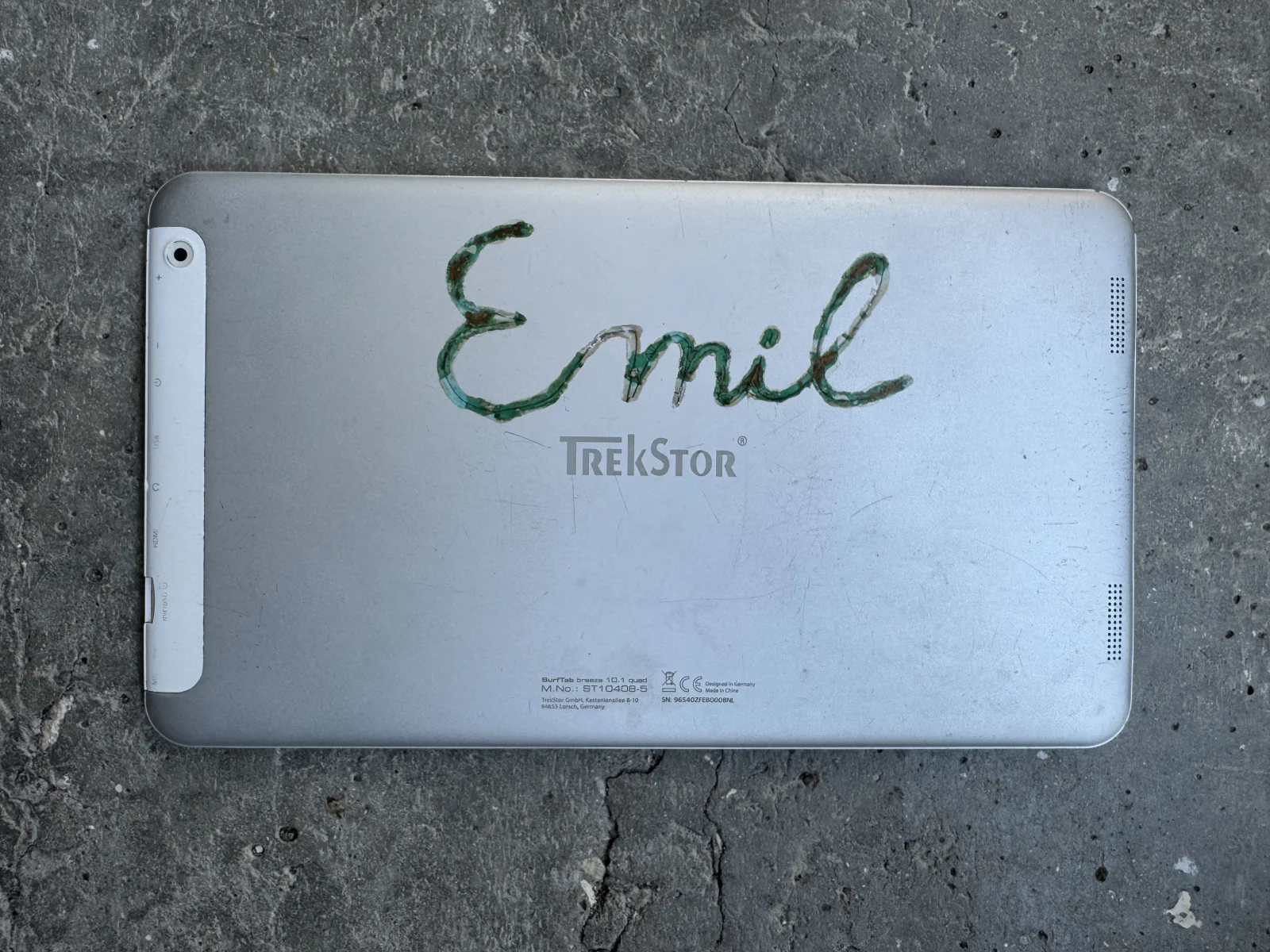
More specifically, Emil’s TrekStor SurfTab breeze 10.1 quad.
Other than its unusually wide aspect ratio, there’s not much interesting on the outside. It is just a generic, unassuming old Android tablet.
The problem
After powering it on, I was met by this screen:
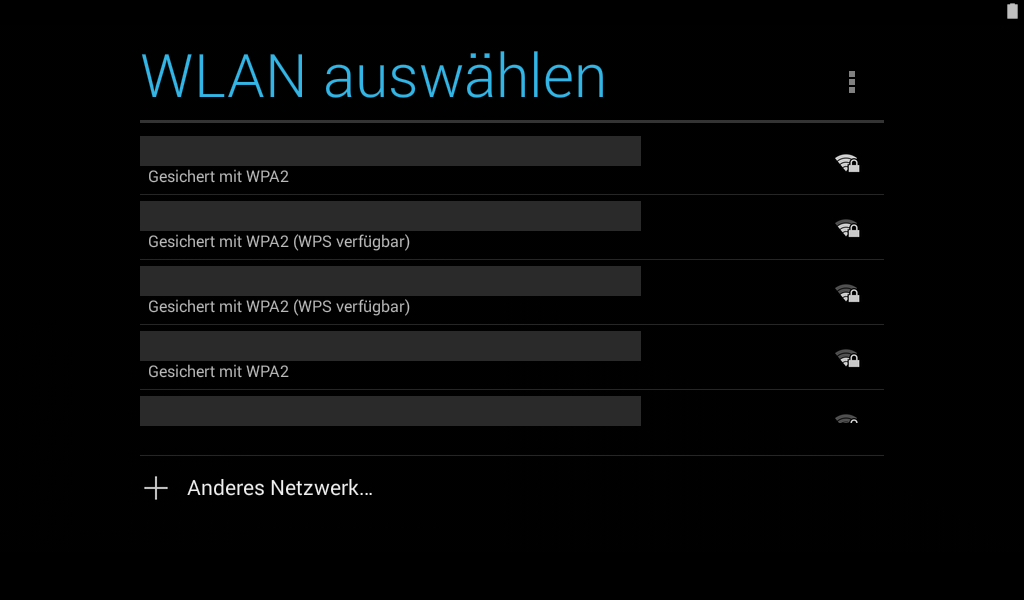
It says “Select Wi-Fi” and lists the available networks.
The normal Android setup, right?
The weird part was that, unlike the normal Android 4 setup, this had no skip button. It also showed the lock screen before reaching that display, which the normal setup does not do. I did not really want to connect it to my Wi-Fi, but with seemingly no other option, I did:
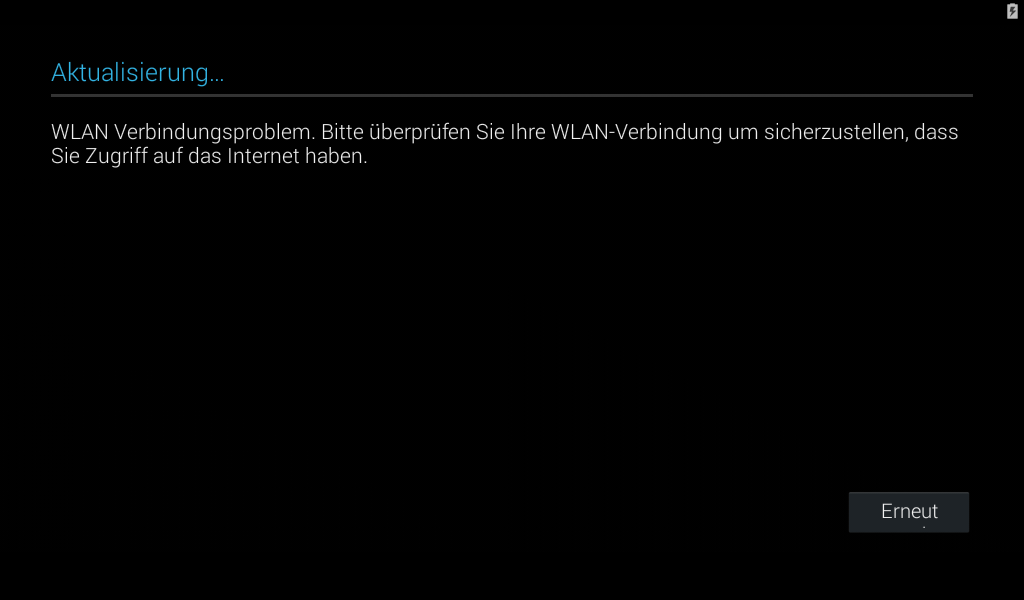
The title says “Updating…”, and the text below complains that there is a Wi-Fi connection problem.
Apparently, setup depended on completing some mandatory online step, but whatever server it expected was no longer responding :(
One more example of why devices should not depend on mandatory online activation.
And this was not just my tablet. I later found at least three complaints about the same issue, one guide explaining how to work around it, and even a “for parts” listing caused by it.
The first thing I tried was resetting it through recovery mode, both to get the setup into English and to rule out this being some temporary glitch. Going through setup again landed me on the same screen, just in English.
My initial fix
Getting a shell
Way before I had the idea of fixing this for everyone, I just wanted to get my own unit working. Let’s go over how I did that.
Newer versions of Android feature something called Factory Reset Protection. Introduced in Android 5.1, it is a client-side lock that activates when a device linked to a Google account is reset through recovery mode. During setup, the device then requires credentials for a Google account that was previously on it.
Because older Android versions were not as secure, people who were trying to get around setup locks often looked for ways to escape the setup wizard, usually by opening a link that sent them into an app they were not supposed to access during setup. They then used it to reach Settings or enable adb, which allows them to get a shell and disable the lock. This tablet runs Android 4, which predates FRP. Still, I was stuck inside a setup screen with no obvious way out, so I decided to try the same basic idea here.
After about 10 minutes of clicking around random stuff, I managed to reach Settings. Here’s a video:
In the video, I get sent to another Wi-Fi connection page. But how is it any different from the previous one? Well, this one behaves like a normal Settings page, so pressing Back takes you into the full Settings app, where you can enable Developer options :D
Now I had adb, which can open a shell on the system, transfer files, and do much more.
Breaking out
Usually, OEM setup customizations like this are in a separate app. I decided to dump that horrible app to try to reverse engineer it. But first, I needed its name. I could have searched through the entire package list, but it seemed easier to check which app was currently on screen via the shell.
For that, I needed to go back to it, and this weird setup state has no Home or Back buttons. So I used an adb command to simulate pressing a physical Home button:
adb shell input keyevent KEYCODE_HOME
That sent me back to the Wi-Fi picker. I then used another command to find the currently focused app:
C:\Users\Niko>adb shell dumpsys window | findstr "mCurrentFocus"
  mCurrentFocus=Window{420c05e8 u0 com.android.settings/com.android.settings.wifi.WifiSetupActivity}
…Settings? That surprised me. I had watched the main setup wizard close, so I did not expect the regular Settings app to be behind this screen. Next, I tried to run the same command on the actual “Update Failed” screen, and that actually gave me a useful result:
C:\Users\Niko>adb shell dumpsys window | findstr "mCurrentFocus"
  mCurrentFocus=Window{420d2a48 u0 com.taphier.customizer/com.taphier.customizer.WaitForCustomizerActivity}
com.taphier.customizer. From this point, dumping it was as easy as this:
C:\Users\Niko>adb shell pm path com.taphier.customizer
package:/system/priv-app/TrekStor_Setup_Wizard.apk

C:\Users\Niko>adb pull /system/priv-app/TrekStor_Setup_Wizard.apk
/system/priv-app/TrekStor_Setup_Wizard.apk: 1 file pulled, 0 skipped. 9.4 MB/s (1270883 bytes in 0.129s)
Fun fact: the APK is signed with an Android Debug certificate instead of a production key, and the firmware reports test-keys.
I then used Decompiler.com to decompile it. You can get the same results using JADX locally, but I did not feel like installing all that :3
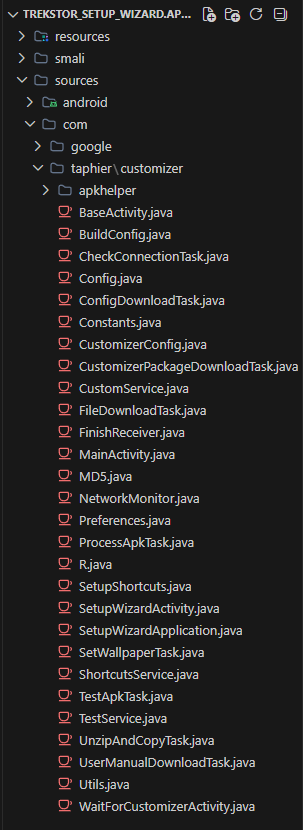
After a quick skim through the files, I found one called WaitForCustomizerActivity.java. That seemed like what I was looking for. Near the top of the file was an intent action for completing the custom update:
public static final String ACTION_CUSTOM_COMPLETED = "com.taphier.TAPHIER_CUSTOM_UPDATE_COMPLETED";
A bit further down, inside onReceive, I found exactly what the app does when it receives that intent:
if (action.equals("com.taphier.TAPHIER_CUSTOM_UPDATE_COMPLETED")) {
    if (noUpdate.booleanValue()) {
        Toast.makeText(WaitForCustomizerActivity.this, "No custom package found for this device!!", 1).show();
    }
    WaitForCustomizerActivity.this.removeStickyBroadcast(intent);
    WaitForCustomizerActivity.this.done();
    return;
}
Seems about right. After a successful setup, the service broadcasts com.taphier.TAPHIER_CUSTOM_UPDATE_COMPLETED, and this activity marks the wait as done.
The failure handler was right below it:
if (action.equals("com.taphier.TAPHIER_CUSTOM_UPDATE_FAILED")) {
    if (!isNetIssue.booleanValue()) {
        WaitForCustomizerActivity.this.restartService();
    } else {
        WaitForCustomizerActivity.this.useLossConnectivityScreen();
    }
    WaitForCustomizerActivity.this.removeStickyBroadcast(intent);
    return;
}
When the activity receives com.taphier.TAPHIER_CUSTOM_UPDATE_FAILED because of a network issue, that method sends it back to the Wi-Fi screen. That is exactly what I was experiencing.
In other words, all the tablet needed was for someone to tell it that the custom update had completed, and luckily adb lets us broadcast any intent we want!
And we’re in!
This was originally where I was gonna leave it. Silly old tablet, broken activation, easy bypass.
Then I had a random thought.
Fixing it for everyone
The activation server
TrekStor, the manufacturer of this tablet, was renamed to TS-Service GmbH and entered insolvency proceedings in 2022.
It was a stretch, but what if I could somehow remake the original server and fix this for everyone? The developers had not even bothered to sign their system services properly, and the entire Android build was no different. If they skipped steps as basic as that, I figured their whole activation setup would not be anything too complicated.
Of course, all of this would be pointless if the tablet had no way to reach my server. It was hardcoded to contact the original activation server.
The company’s original trekstor.de domain now hosts a shop for home construction stuff. But more importantly, the decompiled app did not mention trekstor.de at all. After browsing through the files a bit more, I discovered that it contacted a completely different domain:
public static final String SERVER_URL_JSON = "http://id.readerportal.de/tabletinit";
And lo and behold:

Potentially fixing 100K+ tablets for €3? Instant buy.
How did I estimate 100K+ affected tablets? And what about other models?
To be clear, I do not imagine that all 100K+ units are still around or are gonna be factory reset, especially in 2026. But as I said earlier, I found at least three complaints about this issue, one guide explaining how to fix it, and a “for parts” listing caused by it.
Also, spoiler alert: while testing my server, I actually activated some German person’s 7-inch version of this tablet!
Here is how I got my very rough estimate of at least 100K affected tablets:
First, I found the company behind the relevant figures. Telefield International Holdings Limited owned 51% of TrekStor GmbH in 2014. Since TrekStor was a private German subsidiary, it did not publish its own detailed sales figures. Telefield was publicly listed, though, so its annual report included some figures relating to TrekStor products.
Telefield’s 2014 annual report says that a German copyright collecting agency claimed fees for certain storage and multimedia products sold by the group in Germany. The estimated claim for the multimedia products rose from HK$57.7 million at the end of 2013 to HK$95.7 million at the end of 2014. That is a difference of HK$38 million.
The Deutsche Bundesbank’s exchange-rate statistics give a 2014 average of approximately
€1 = HK$10.3025. At that rate, HK$38 million is about €3.69 million.A WIPO survey of copyright levies lists the 2014 German tariff as €7.4375 per consumer tablet, before 7% VAT. Including VAT, that is about €7.96 per tablet.
Dividing €3.69 million by €7.96 gives roughly 463,000 tablets. That does not mean TrekStor sold exactly 463,000 affected tablets in 2014. The annual report calls the amounts estimated claims, covers “multimedia products”, not just tablets, and does not say that the increase represents only that year’s sales. TrekStor also sold several tablet and e-book reader lines that did not use this activation system.
If I very roughly assume that only one quarter of that total came from the affected breeze models, I get about 116,000 units. That is where my “100K+” estimate comes from. It is not a hard sales figure, but I think it is a good enough estimate.
What about their other tablets?
I was able to find six unique full Android firmware packages for various TrekStor tablets.
Out of all of them, only the cheaper breeze series had the activator.
As for the Windows ones, they do contact my server, but through a different endpoint that seems to be non-critical, unlike the one used by the breeze series. I did not find a complete Windows image for them, and am not really interested in them at this point.
Reverse engineering the old server
My idea was to figure out what response the tablet expected and recreate it on my own server. After tracing through a bunch of decompiled code, here’s what I figured out:
The tablet initially reaches out to:
http://id.readerportal.de/tabletinit?device_id={a unique device identifier}
It expects a response shaped like this:
{
  "manual_url": "http://example.com/manual.pdf",
  "store_name": "Something",
  "custom_url": "http://example.com/custom.zip",
  "customfile_md5": "d41d8cd98f00b204e9800998ecf8427e"
}
All four values are strings.
manual_urlpoints to a user manual that the tablet downloads and saves as/sdcard/User Manual.pdf.custom_urlpoints to a ZIP containing extra customization, which I’ll go into in a bit.customfile_md5is the MD5 hash of the ZIP, used to verify it.store_nameis parsed but unused, so idk.
Now let’s go over custom_url, as it is pretty interesting.
The tablet expects a ZIP file containing these folders:
| Folder | What the tablet does with it |
|---|---|
apps/ | Installs each APK inside as a user app. |
wallpaper/ | Sets the first image it finds as the wallpaper. |
movies/ | Moves the files inside to Android’s Movies folder. |
music/ | Moves the files inside to Android’s Music folder. |
pictures/ | Moves the files inside to Android’s Pictures folder. |
widgets/ | Detects the folder, but does not actually do anything with it. |
daydreams/ | Detects the folder, but does not actually do anything with it either. |
Making my own server
Initial success
Now that I knew exactly what the tablet expected, it was time to make the server itself. I decided to use FastAPI as it is what I am familiar with.
I quickly threw together a rough version to see whether the idea would work. It served the JSON response plus the ZIP and PDF downloads, all filled with random junk from my PC. Then I reset the tablet and went through setup once more:
You can see that after a fresh setup, there’s stuff that should not be on a reset tablet, including the Portal wallpaper, Device Info HW preinstalled, and random files.
Worked perfectly, great!
Testing pains
And this is also where the issue is. To test my server, I needed to bring the tablet back to a state where it hadn’t gone through the customized setup. For my initial test, I just reset the tablet. That works, but each reset + setup takes about 20 minutes of my life, and I’m not sure the eMMC likes it either.
So let’s figure out what exactly I need to revert to get the setup back without resetting.
When the customization finishes, WaitForCustomizerActivity closes itself. Its onDestroy() method then marks Android’s setup as complete by setting both device_provisioned and user_setup_complete to 1:
protected void onDestroy() {
    Settings.Global.putInt(getContentResolver(), "device_provisioned", 1);
    Settings.Secure.putInt(getContentResolver(), "user_setup_complete", 1);
    // ...
    super.onDestroy();
}
That call to super.onDestroy() at the end eventually reaches onSetupComplete(), which disables the customizer’s own activity. The 2 here is Android’s COMPONENT_ENABLED_STATE_DISABLED:
toggleComponent(
    new ComponentName(this, WaitForCustomizerActivity.class),
    2
);
Android apps are made up of separate components, such as activities, services, and receivers, and the package manager can enable or disable any one of them. Here it disables only WaitForCustomizerActivity, not the entire com.taphier.customizer package.
So to run the whole thing again, I needed to clear the customizer’s saved progress, change both setup values back to 0, and re-enable WaitForCustomizerActivity. Clearing its app data matters because the customizer stores flags for completed steps, such as downloading the configuration, manual, and ZIP. Without clearing them, it can skip work it thinks it has already finished.
Both protected settings can be changed from a normal adb shell:
C:\Users\Niko>adb shell settings put global device_provisioned 0
C:\Users\Niko>adb shell settings put secure user_setup_complete 0
That left re-enabling the disabled activity. When I tried doing that from the same shell, Android rejected it:
C:\Users\Niko>adb shell pm enable com.taphier.customizer/.WaitForCustomizerActivity
java.lang.SecurityException: Permission Denial: attempt to change component state from pid=15461, uid=2000, package uid=10020
The shell user did not have permission to change the package’s component state. If I wanted to do this, I would need root. Root sounds scary, but it would also be useful for a bunch of other stuff, so I decided I wanted it.
I tried a few things myself, including using mtkclient to unlock the bootloader, but that didn’t work.
Then my wonderful friend Nixie offered to help me root it over remote desktop. Keep in mind that this is not a guide. I am just documenting my experience. Here’s what we did:
First, we managed to find a link to the tablet’s stock ROM in this GitHub comment. That would become useful later, and it also gave us a way back if we messed up badly. I was not going to dump the entire eMMC myself at 0.14 MB/s.
The approach we settled on was Magisk. Magisk patches the boot image so its code starts early in Android’s boot process, which meant we first needed to dump the tablet’s boot partition, patch it, and flash it back.
For the dump, we used mtkclient, a CLI for doing low-level stuff with MediaTek devices. Its
printgptcommand did not show the boot partition, so we used the stock ROM’s scatter file (a map of the raw storage layout, included in the stock ROM downloaded earlier) to find its physical offset and size instead. The final command wasmtk ro 0x1d80000 0x1000000 boot.img.We copied the newly dumped
boot.imgto the tablet withadb, installed the newest Magisk version compatible with Android 4.4, and let the app patch it. We then copied the patched image back to the computer and used mtkclient to write it to the same location on the eMMC. After flashing it, the Magisk app reported that Magisk was installed. However, runningsufrom theadbshell just hung indefinitely, and the Root Checker app timed out.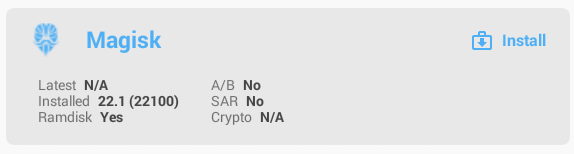
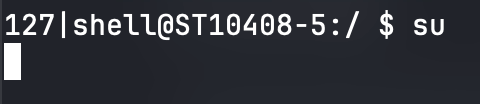
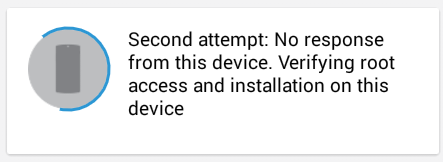
Nixie’s theory was that Magisk itself had installed, but some compatibility issue with Android 4.4 was preventing the root request popup from appearing. To work around that, we decided to edit Magisk’s permissions database manually. It is stored at
/data/adb/magisk.db, though, inside the protected/datapartition that we could not access from the running system without root.Recovery was another way into
/data, but the stock recovery was so basic that we couldn’t copy the database or even get a shell from it. I then remembered Hovatek’s auto TWRP porter for MediaTek devices. I do not know how safe or reliable it is, but after dumping the recovery partition using the same method as above, the tool generated a TWRP build that worked well enough to give us anadbshell. The touchscreen was unusable because its orientation was rotated by 90°.The TWRP port worked, but its touchscreen input was rotated by 90°. Watch or download the video. From TWRP, we used
adbto copy/data/adb/magisk.db, then used an SQL editor to addcom.android.shellandcom.joeykrim.rootcheckto thepoliciestable. That granted root access to theadbshell and the Root Checker app.
After rebooting, we had root access!!!!!!!!
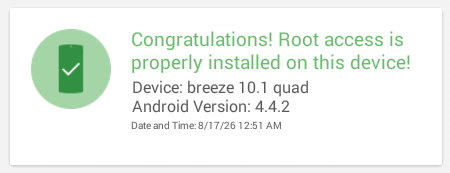
With root working, I could finally return to the problem that started this whole detour. The script I run in the video below clears the customizer’s app data, changes both Android setup flags back to 0, and re-enables WaitForCustomizerActivity as root:
What to include
Now that I had a good testing environment and a working prototype, I had to decide how the final server would work.
First, I had to choose what to bundle. I wanted to keep it minimal because a newly set-up tablet does not need a bunch of random bloat, and the junk from my Downloads folder was only there for testing.
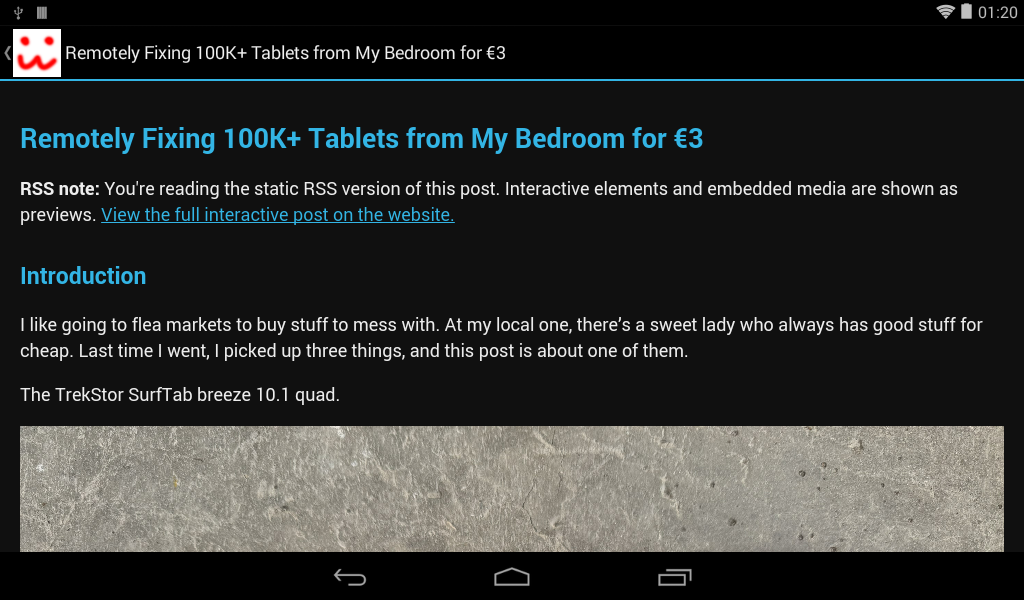
I decided on two things: a PDF used as the user manual and one tiny app that requests no permissions. The app explains why the tablet can complete setup again and where the replacement service came from. It also includes a small reader for this post. Since I had seen reports of people repurposing these tablets for Home Assistant, I figured some owners might be interested in the technical details of this fun project.
Also, fun fact: at about this point in testing, I actually activated some German person’s 7-inch version of this tablet!
Anyways, here’s what they look like:
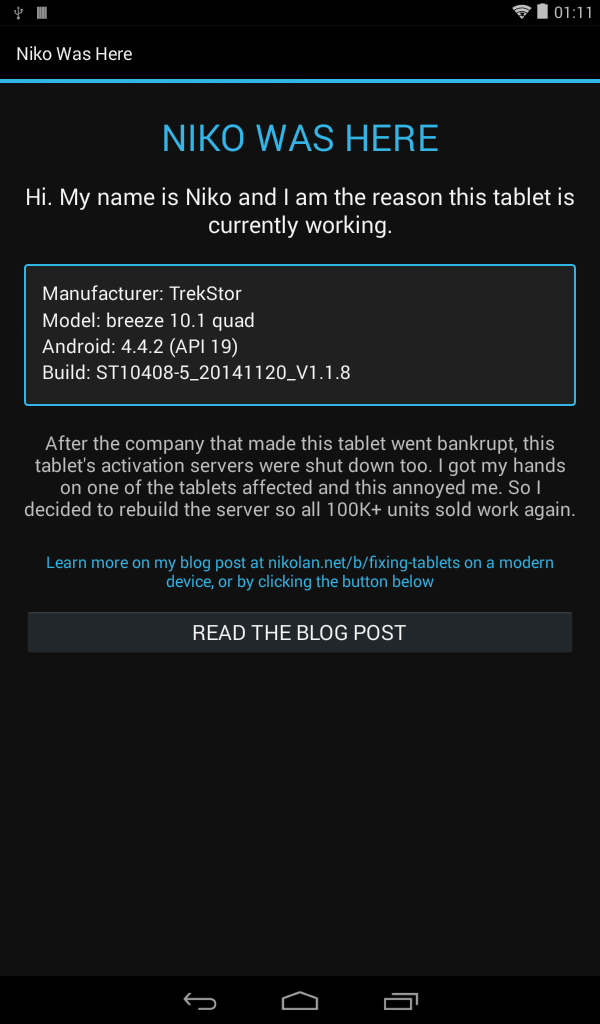
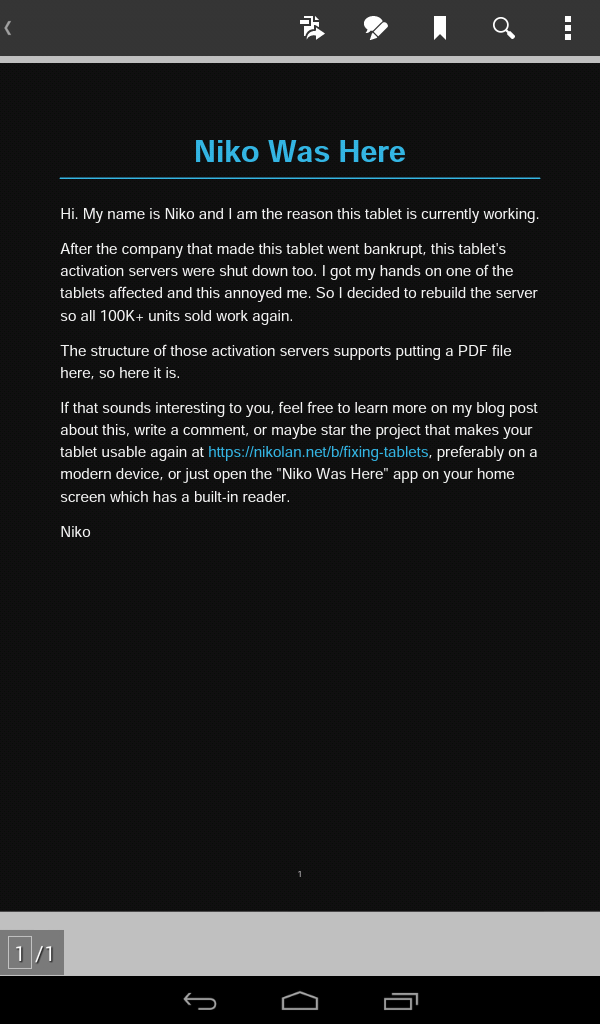
Here’s what the reader looks like:
The server stores Android version, tablet model, and build number, without saving the original header for each activation. I mainly want this for a rough idea of which tablets are using the service, including any compatible models I had not found myself. That is as far as it goes. The server does not store IP addresses, device UUIDs, MAC addresses, raw URLs or query strings, request bodies, or headers.
Finishing and packaging
After all that was done, I packaged the whole thing for deployment. The Docker build compiles the Android app, generates the PDF, and bundles the app into the customization ZIP. GitHub Actions builds the container image when I push to GitHub, and I’m using Docker Compose to run it on my homelab.
The server, app, and PDF source are all in the project repository.
Conclusion
What started as an attempt to get one useless flea market tablet working turned into a much bigger project than I expected. I’m incredibly happy with how it turned out, and I really hope it keeps helping people.
This is my fifth blog post, but I still feel pretty new to writing these. If you have any feedback or just enjoyed the post, feel free to leave a comment. And if this helped you fix an old tablet of yours, feel free to star the GitHub repo.
Thanks for reading to the end!